
To install the OXARI agent, download the installer. The installer can be found under Settings → Agent - desktop → Update
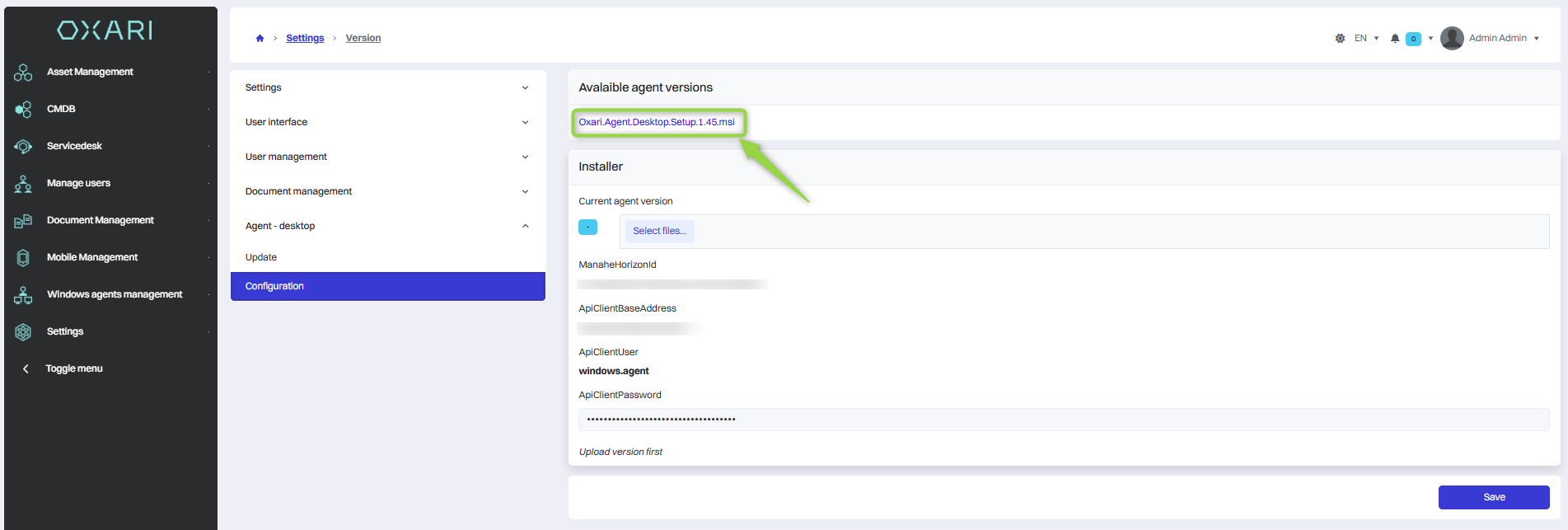
If the password has been changed for windows.agent in OXARI, you need to replace it with Orca software. We can download it from here http://file.it-man.pl/download/orca.msi or from the official Orca website.
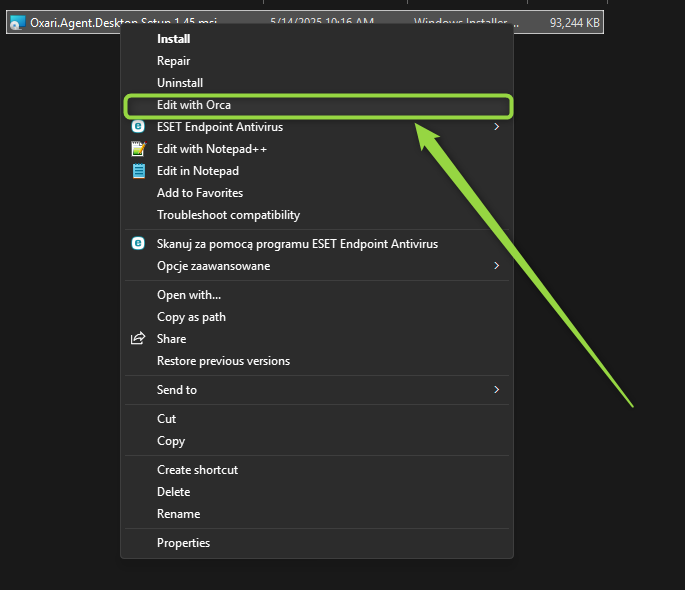
After downloading and installing the Orca software, we edit the installer file
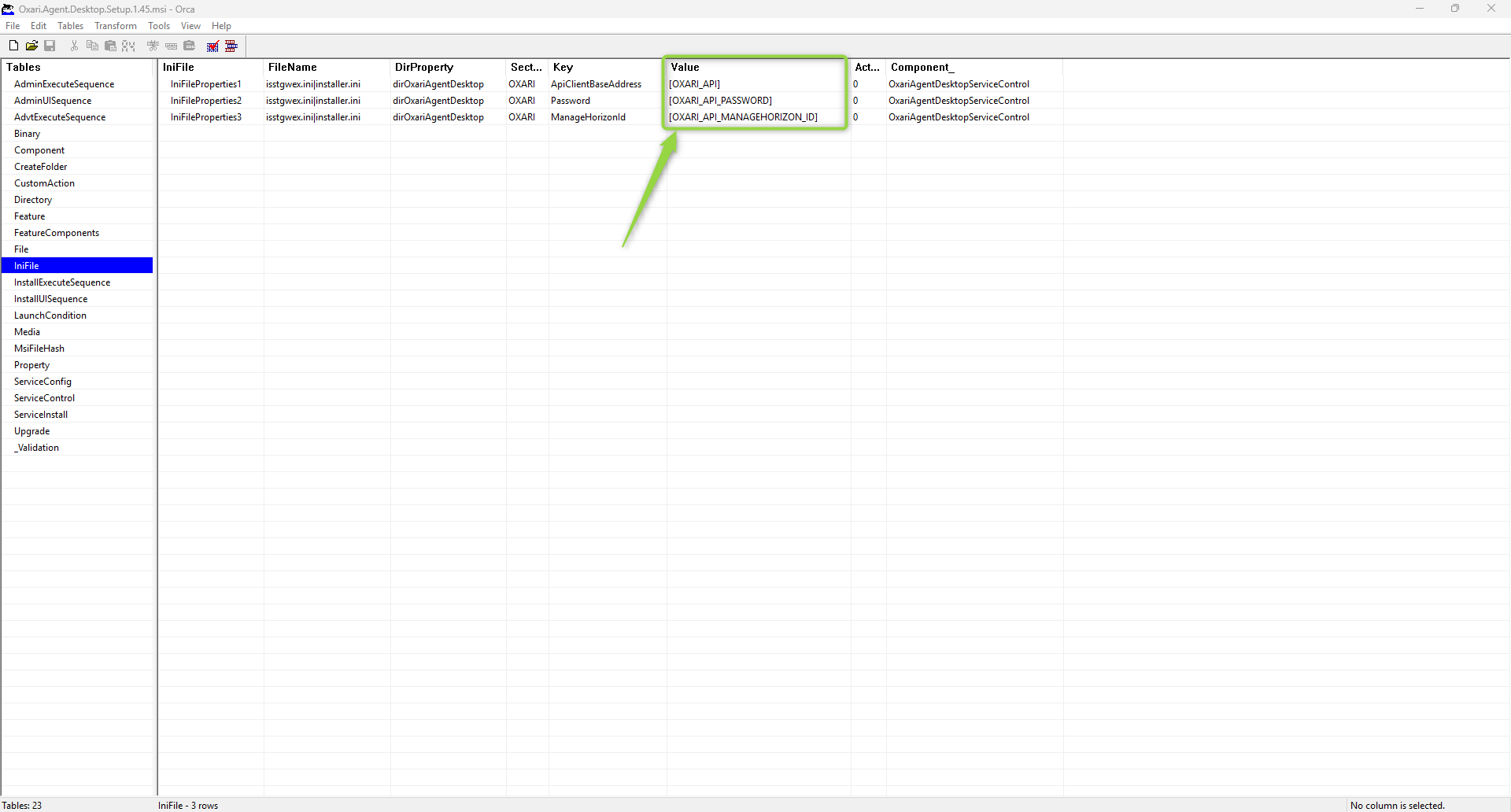
In the Orca software, we go to the IniFile tab and set the correct values for our installer configuration.
We save the configuration. We proceed to the next step.
After downloading and possibly editing in the “Orca” software the installer, we send it in the “Applicable agent version” field to set the agent version for users who will use the agent.
We select the agent installer file that we downloaded.
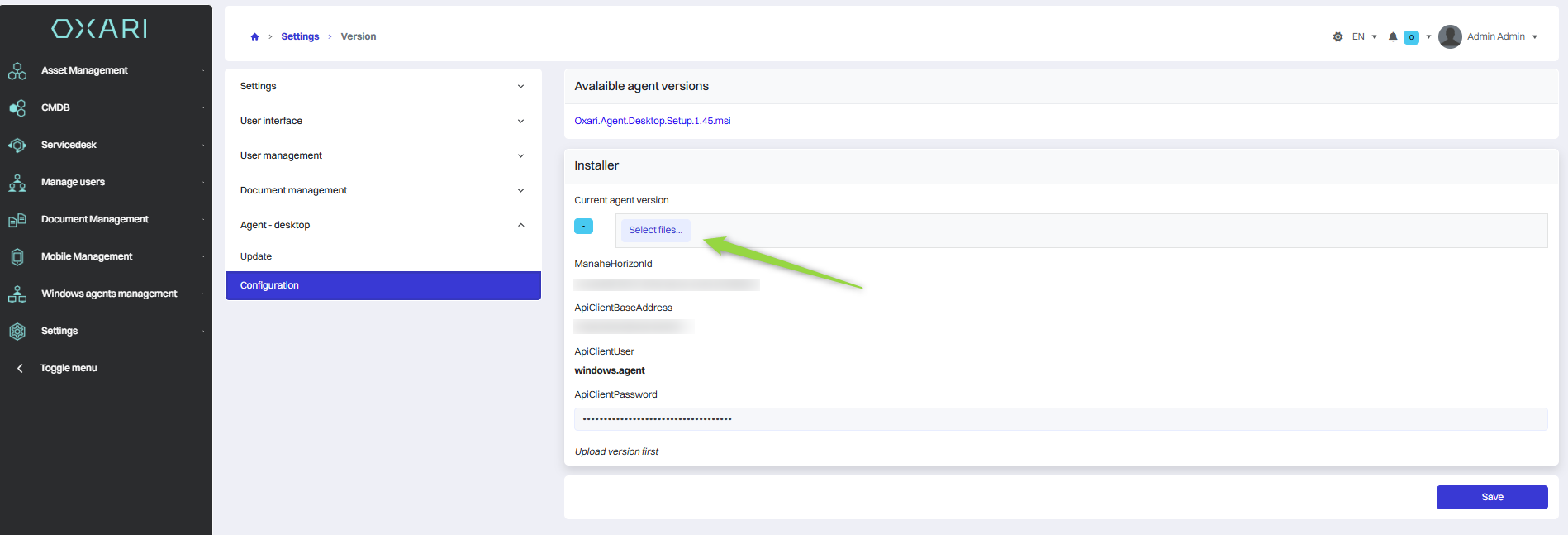
Then we click the save button.
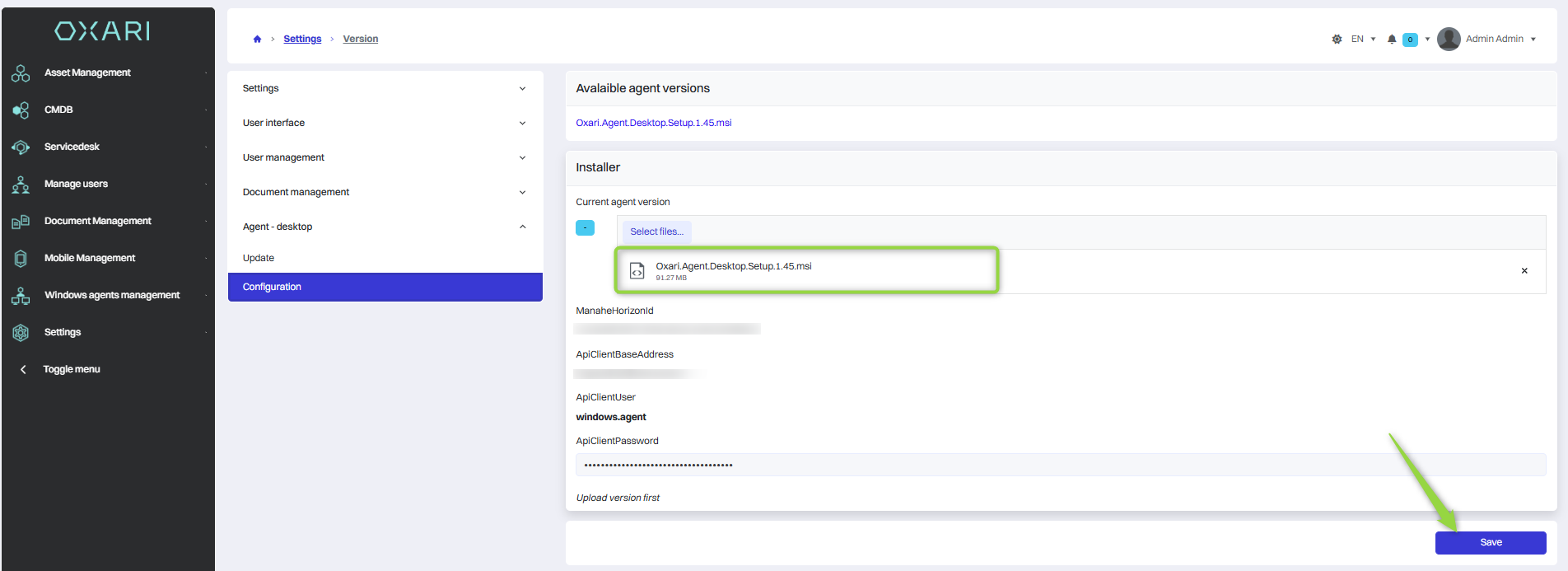
After saving the agent version, a link to download the final OXARI agent installer will appear.
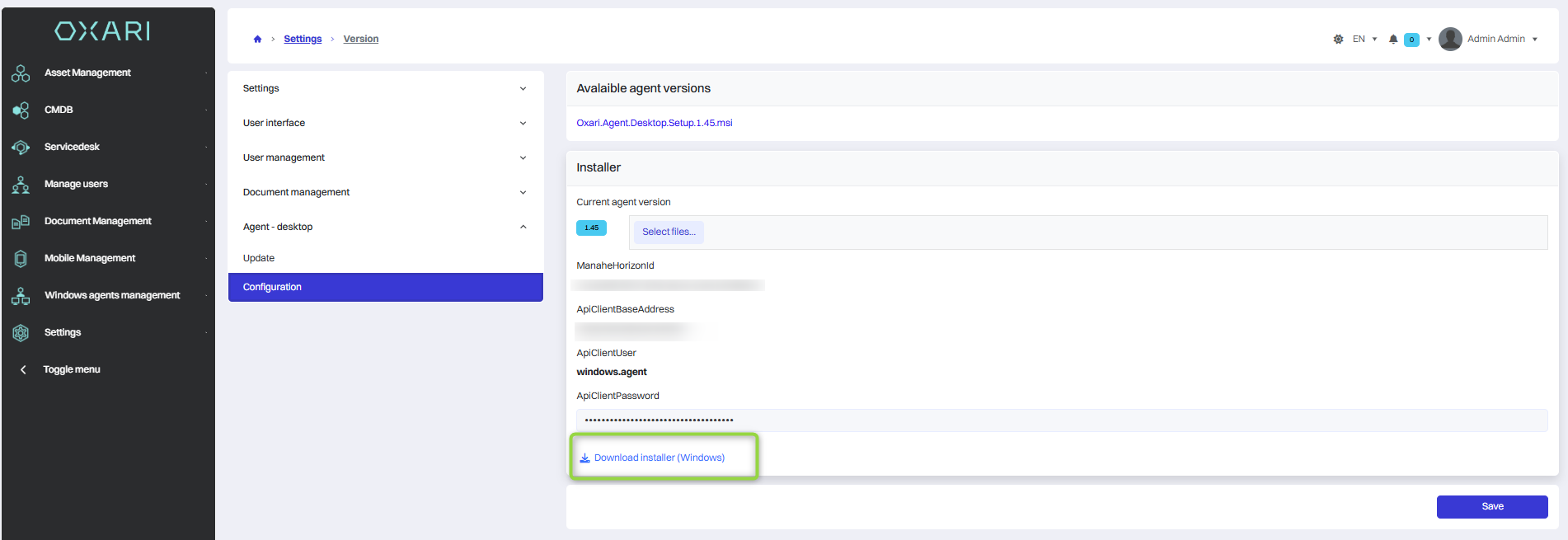
We download this file and install it on the devices that should be supported by the OXARI agent.
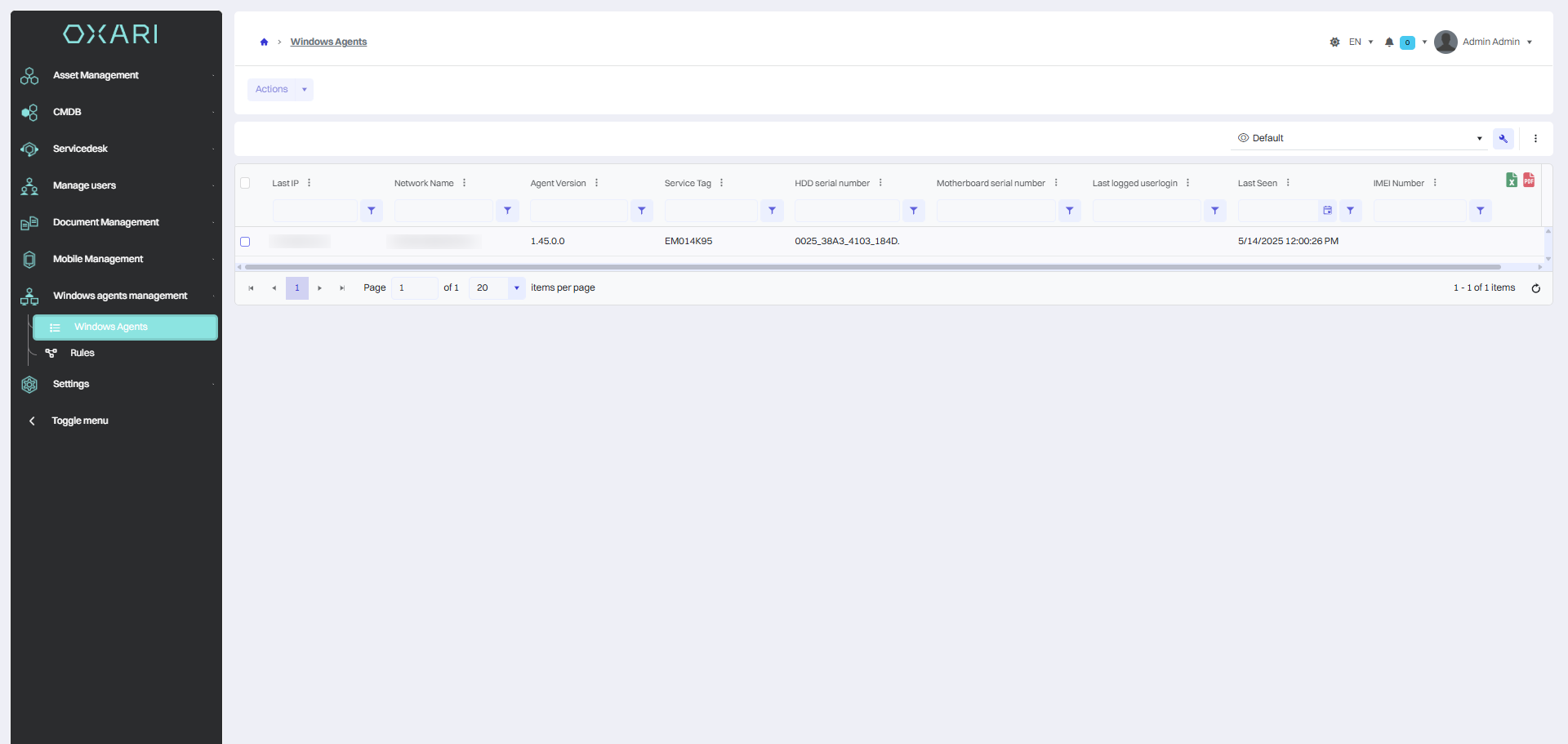
Once installed, under “Windows Agents Management” → “Windows Agents”, a device with the OXARI agent installed should appear in the list.
On a device with the OXARI agent installed on the system, the service should appear.
