This section is responsible for managing Android mobile devices. The mobile agent can be installed under Mobile Management > Configuration, Device Authorization.
To install the mobile agent application: Go >
Main view
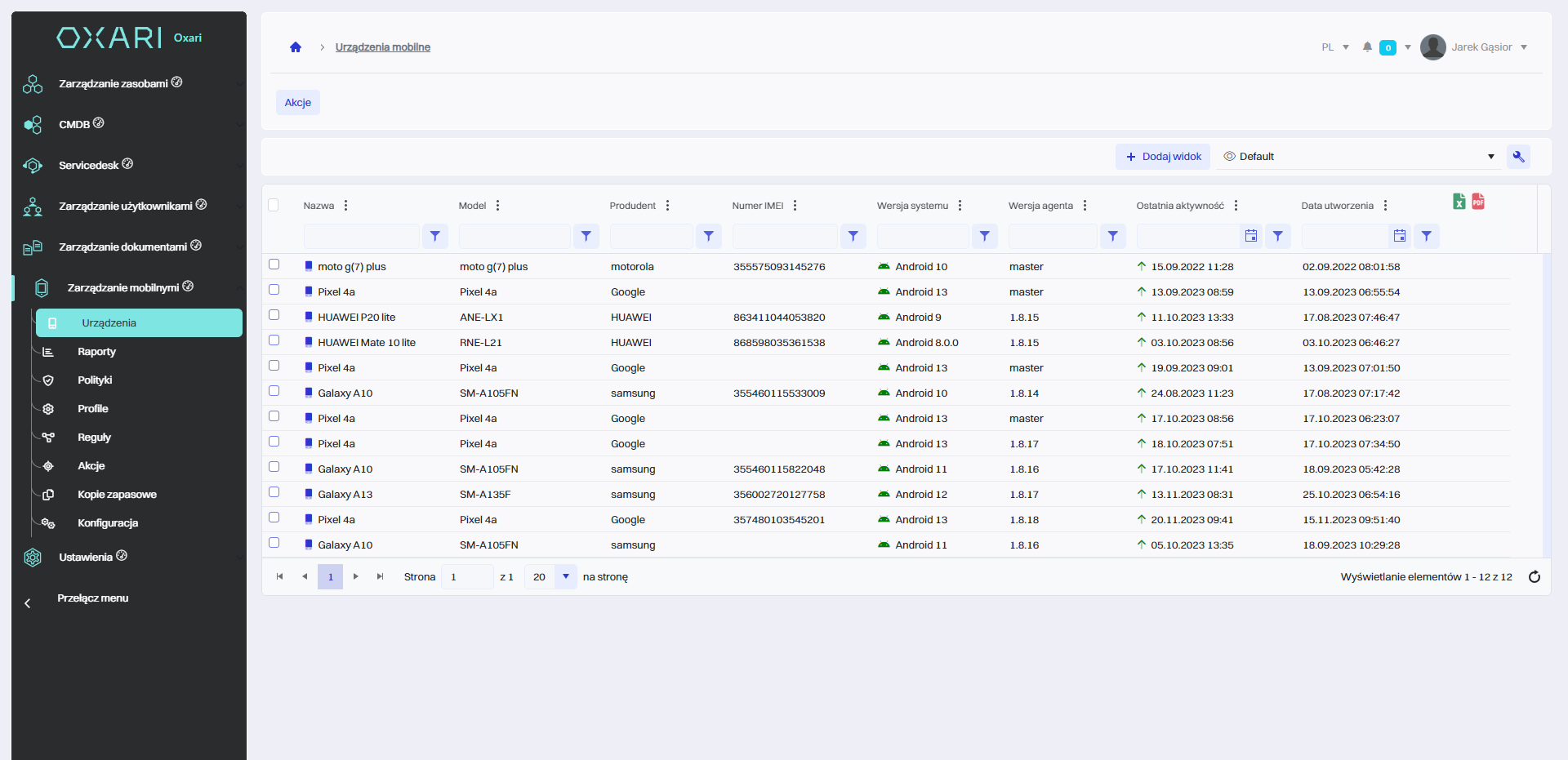
The main window shows a table with a list of devices with the agent installed, which includes detailed information such as name, model, manufacturer, IMEI number and agent version for each device.
Actions from the main view
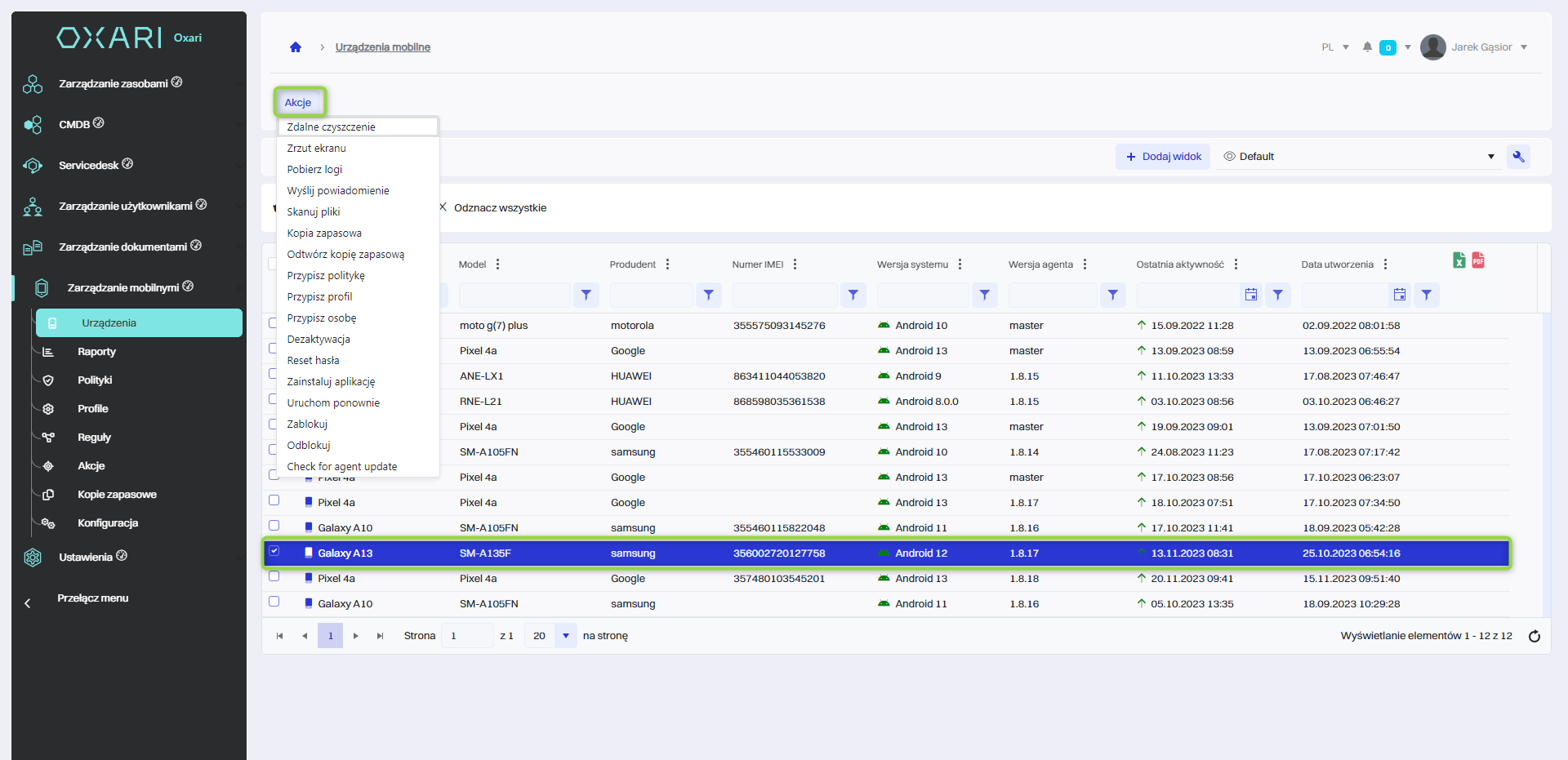
In the upper left corner you will see a menu of actions available for devices. You can perform an action for a particular device by clicking on the “checkbox” next to the device and then clicking on the “Actions” button to select the desired action.
Description of the action
See the table below for details of the action
|
1 |
Zdalne czyszczenie - function enables you to remove the data from the device in the event of its death or theft, ensuring the protection of confidential information. |
|
2 |
Screenshot - allows you to take and download a screenshot of your device, which can be useful for technical support or monitoring purposes. |
|
3 |
Download logs - this option allows you to download system or application logs from the device, which is useful for diagnosing problems and managing errors. |
|
4 |
Send notification - allows you to send a notification directly to the device, which can be used to communicate with the user. |
|
5 |
Scan files - a function that scans files for malware or other security threats. |
|
6 |
Backup - allows you to back up data from your device, which can be restored if necessary. |
|
7 |
Restore backup - restores data to the device from a previously created backup. |
|
8 |
Assign a policy - allows you to assign a specific policy to manage the device, which includes rules for security, configuration or application access. |
|
9 |
Assign profile - allows you to assign a configuration profile to the device, which can specify various system and application settings. |
|
10 |
Assign person - a function used to assign a device to a specific user in the organization. |
|
11 |
Deactivate - the option to deactivate the device, which may mean excluding it from active management in the system.For Device Owner - reset to factory settings, for Standard and WorkProfile - clear the application data and deregister the agent from the system. |
|
12 |
Password reset - allows you to reset the device's password remotely, which is useful if you forget your password. |
|
13 |
Install application - allows you to remotely install an application on your device. |
|
14 |
Restart - performs a remote reboot of the device. |
|
15 |
Lock - locks the device to protect it from unauthorized access. |
|
16 |
Unlock - unlocks the device if it was previously locked. |
|
17 |
Check the availability of agent updates - check the availability of system agent updates on the device and perform the update if necessary. |
Device detail view
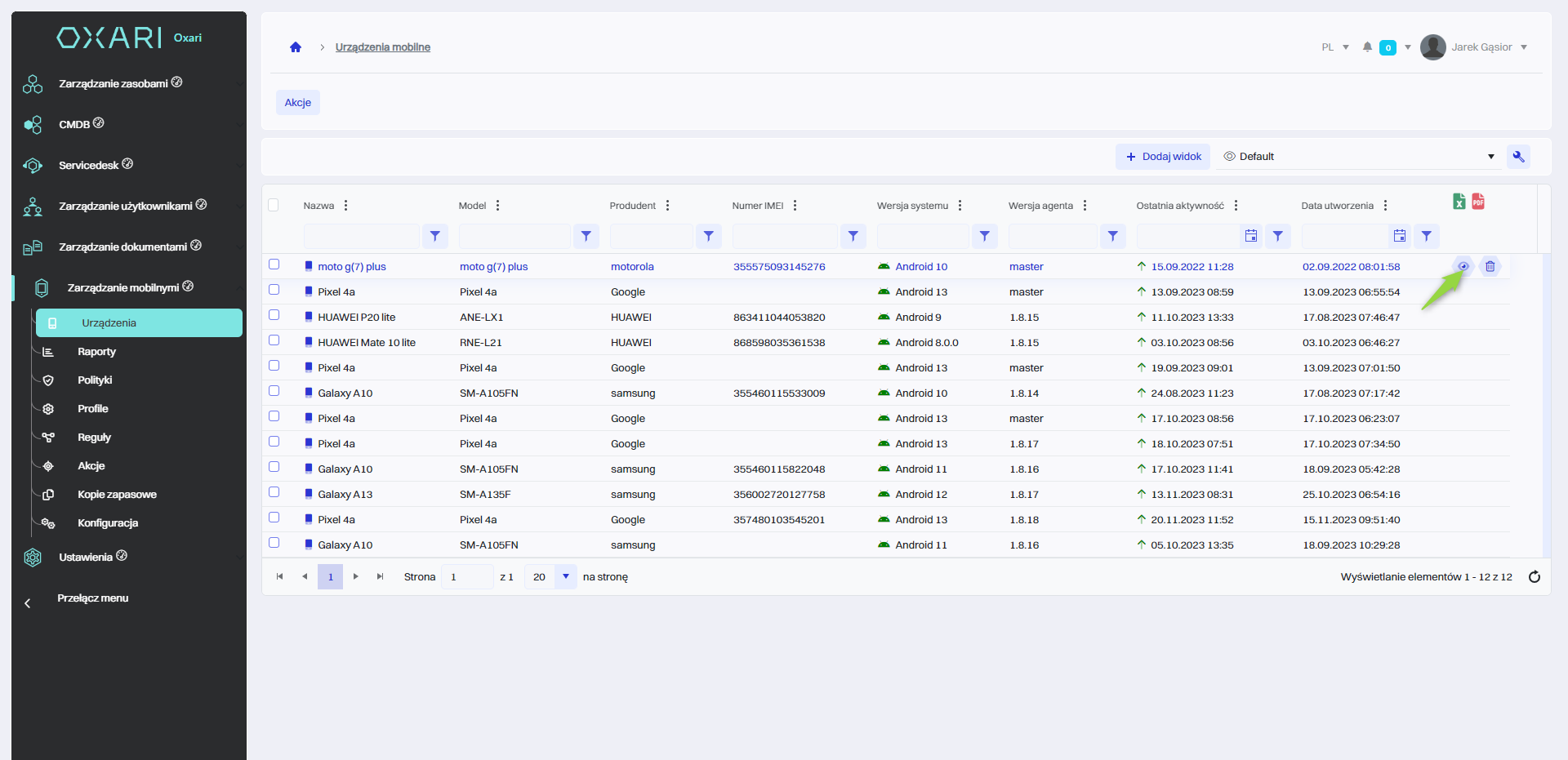
From the main table, you can open the device detail view by clicking the following button.
Below is the interface of OXARI's mobile device management system, focused on the details of a specific device. The screen is divided into several sections to manage different aspects of the device.
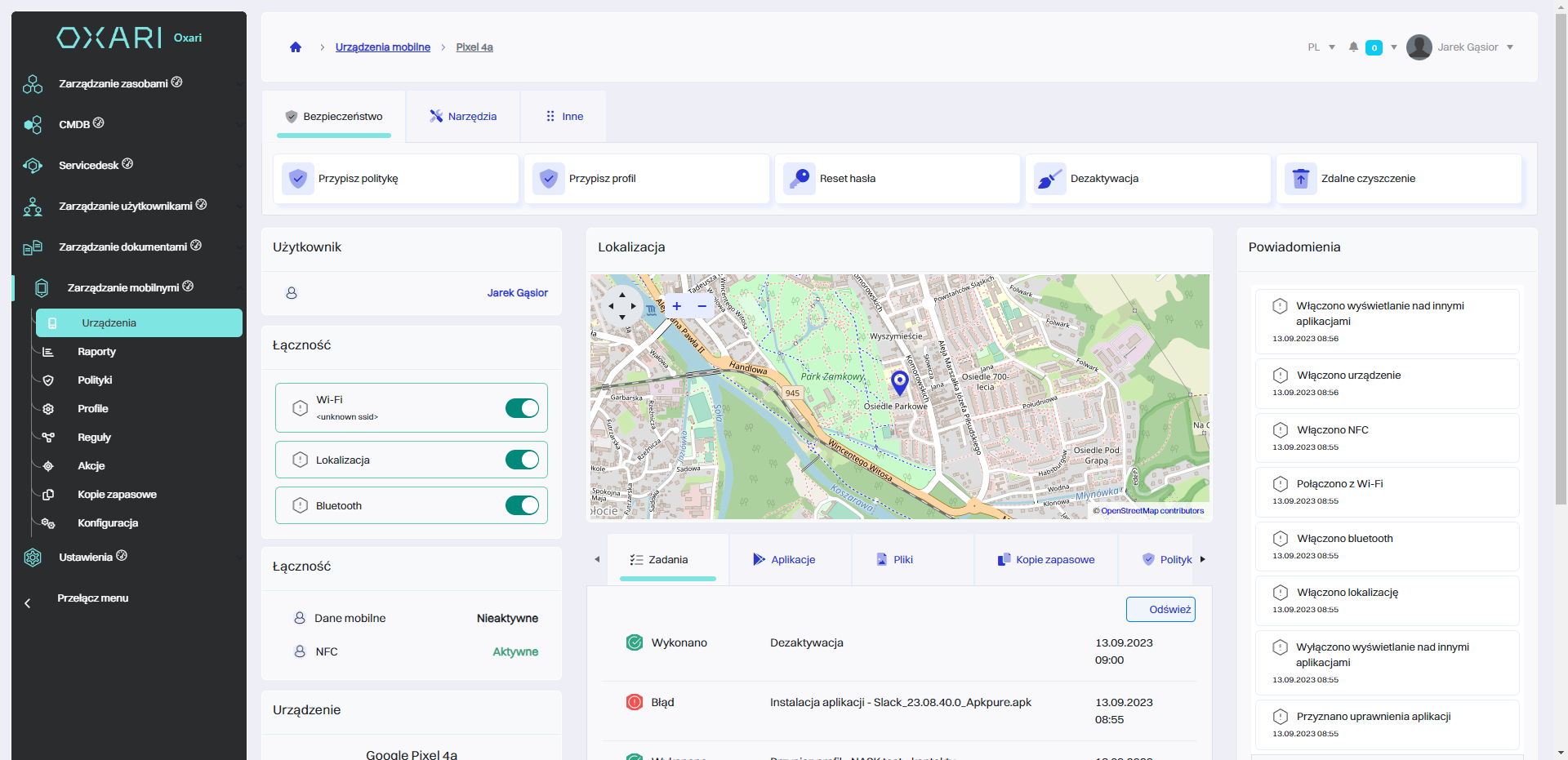
Action section
The actions are described: Go >

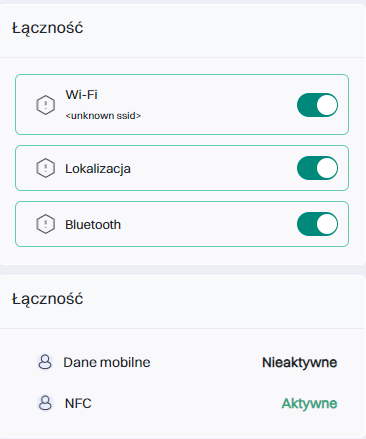
Connectivity section
Connectivity contains information about the type of communication running on the device.
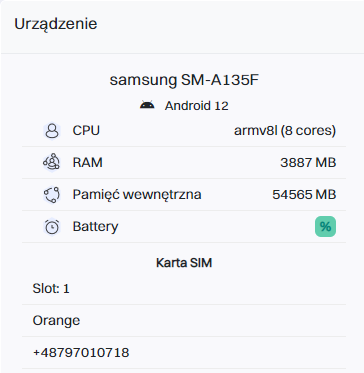
Device section
A section containing basic information about the device such as system version, device model, processor type, amount of RAM or SD card memory.
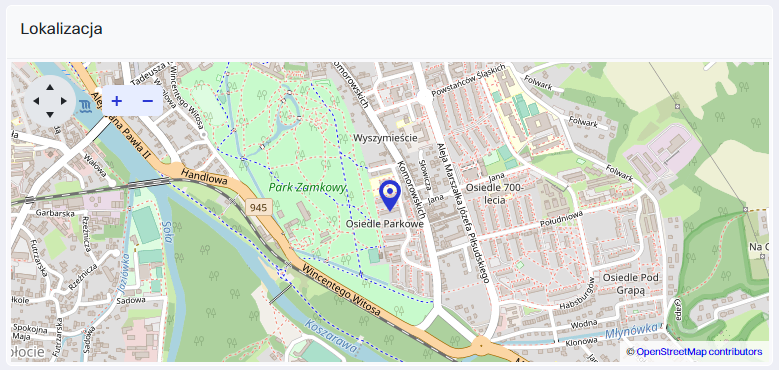
Location section
The section shows a map indicating the current location of the device.
Device section
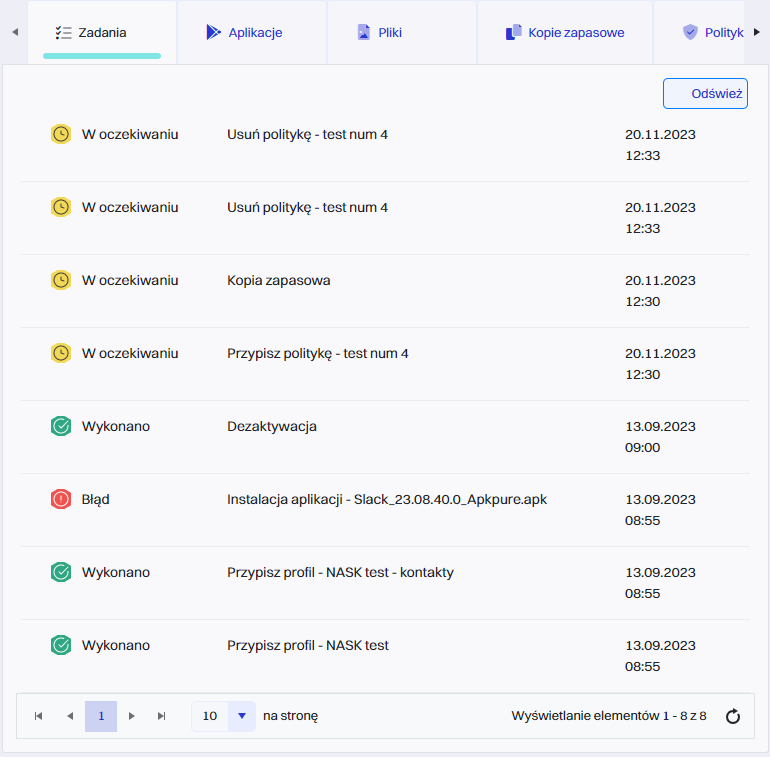
This is the interface for managing your mobile device which includes tabs: “Tasks”, “Applications”, “Files”, “Kopie zapasowe”, “Policy”.
-
Tasks - This tab shows a list of tasks assigned to the device. Tasks can be in different states: “expected”, “Executed”, “Błąd”, etc., and include a variety of shares such as application installation, update, backup copy creation.
-
Applications - Here you can manage the applications installed on your device. You can review, install new app, update existing, or remove unnecessary.
-
Files - Section ta allows you to review files saved on the device, management of the device, transmission new files or remove existing.
-
The spare - In this plant, the user can configure and manage a copy of the device, which is a key function in the safety of the data.
-
Policy - This place to manage security policy and use for the device, such as the requirements for the hassle, application restriction, or network configuration.
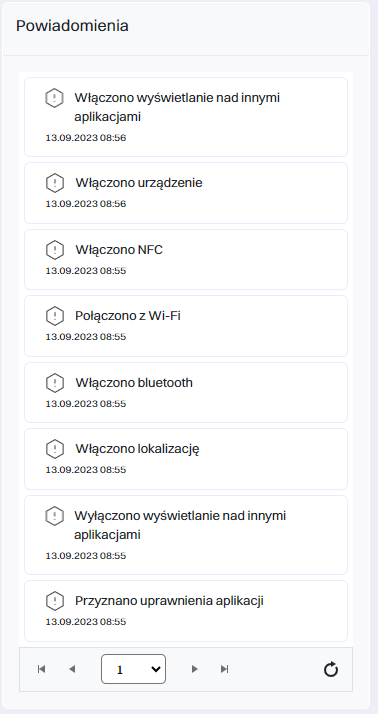
Notification section
This section shows a list of events and status changes related to the mobile device. Each notification is marked with the time when it occurred, allowing you to keep track of recent device activity.
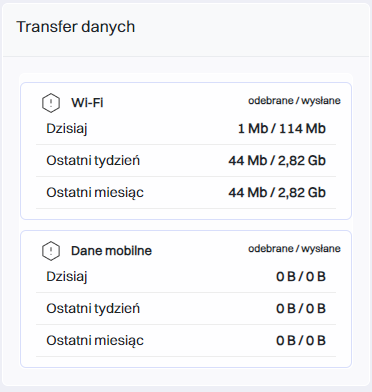
Data transfer section
This section shows information about the device's data usage. It shows the amount of data received (downloaded) and sent for two different types of connections: Wi-Fi and mobile data.
Automatyczne aktualizacje aplikacji w urządzeniu Android
Aby włączyć automatyczne aktualizacje aplikacji na urządzeniu z systemem Android przez Google Play, należy wykonać poniższe czynności:
-
Otworzyć aplikację Google Play.
-
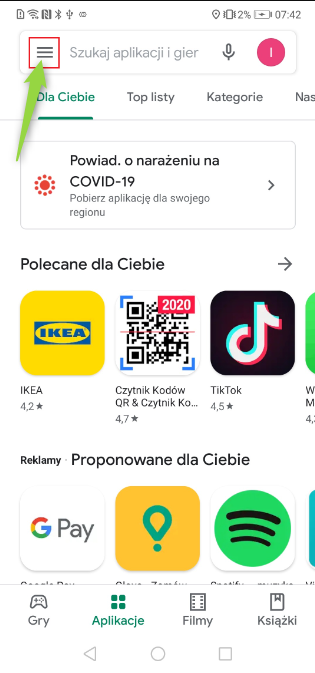
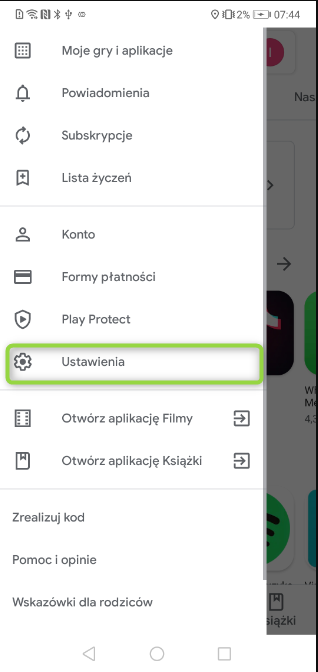
Następnie wybrać ikonę Menu w lewym górnym rogu.
-
Przejść do sekcji "Ustawienia".
-
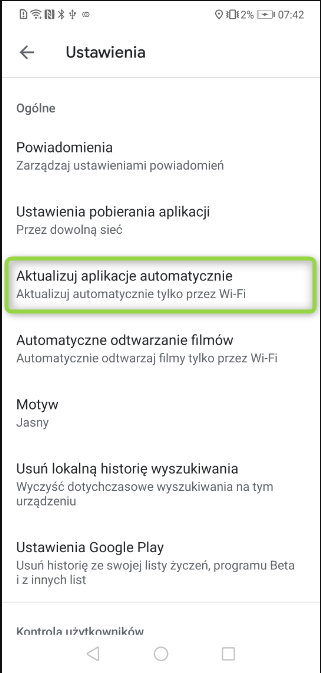
W sekcji "Ustawienia" wybrać "Aktualizuj aplikacje automatycznie".
-
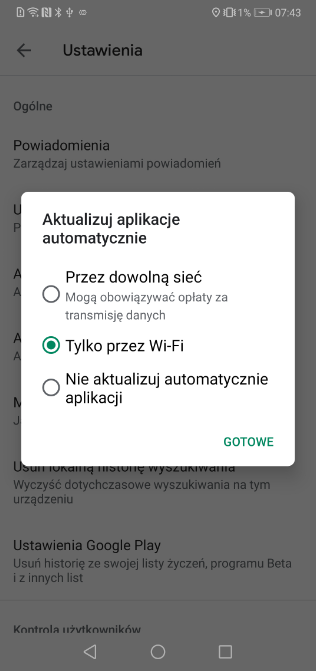
Określić preferowaną opcję aktualizacji, rekomendowaną jest opcja "Tylko przez Wi-Fi" w celu uniknięcia zużywania danych komórkowych. Potwierdzić wybór, klikając "Gotowe".
Optimization on a Huawei device
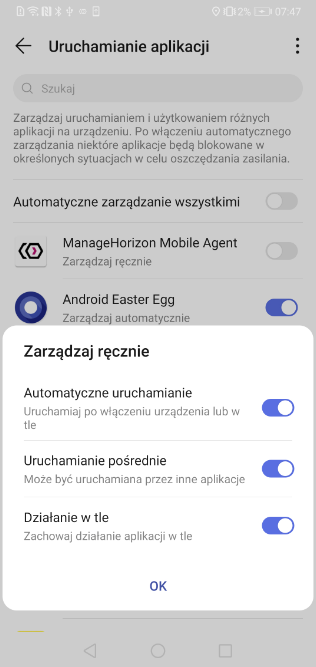
For Huawei phones, you need to change the optimization settings. To do this, go to the system settings:
-
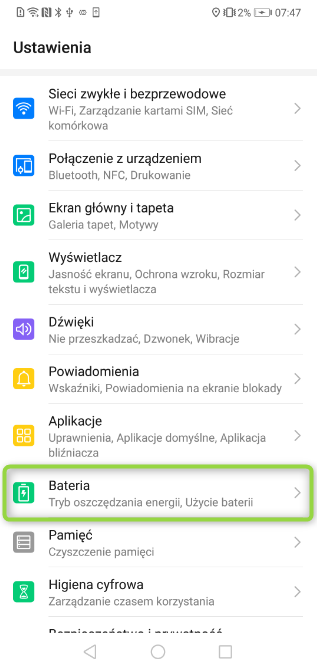
Open “Settings” on your Huawei device
-
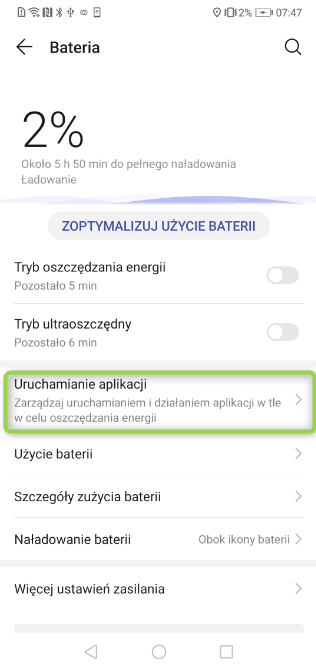
Go to the “Battery” section.
-
Select the option “Launching applications.”
-
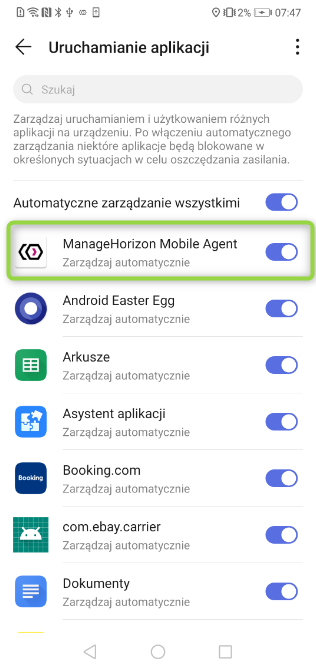
Find the “OXARI Mobile Agent” application in the list.
-
Adjust the application settings according to the photo.