
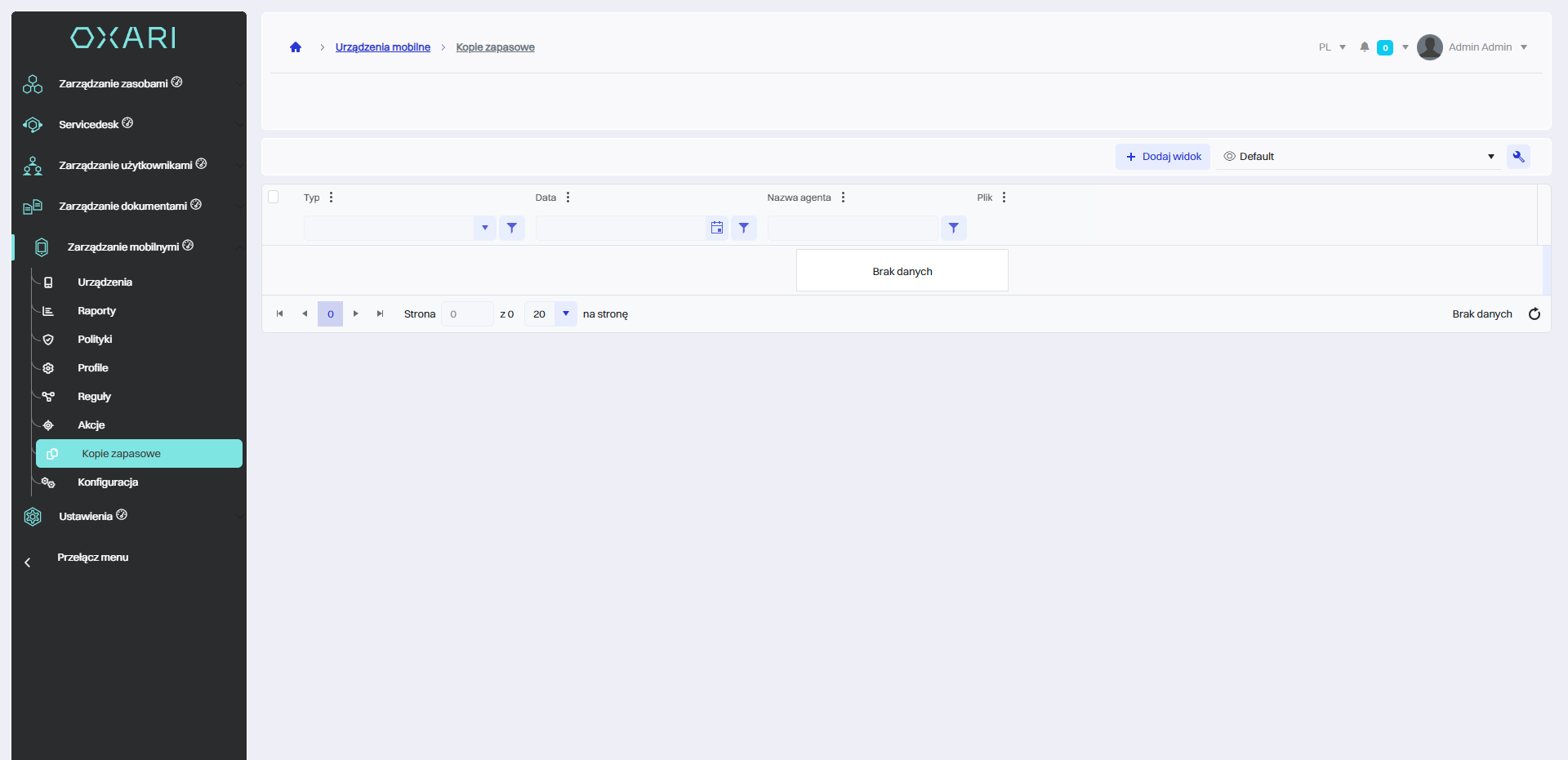
The “Backups” section of the OXARI mobile management system is where backups of data from mobile devices are stored. It contains a list of archived files, representing saved copies of different types of data, such as call logs, contacts, and SMS messages. Each backup has a specific data type, the date of archiving, the device name and the name of the backup file. These backups are crucial for restoring data in case of loss or restoring device settings to an earlier state.
Making a Backup
Backup can be done in two ways.
The first way to make a backup
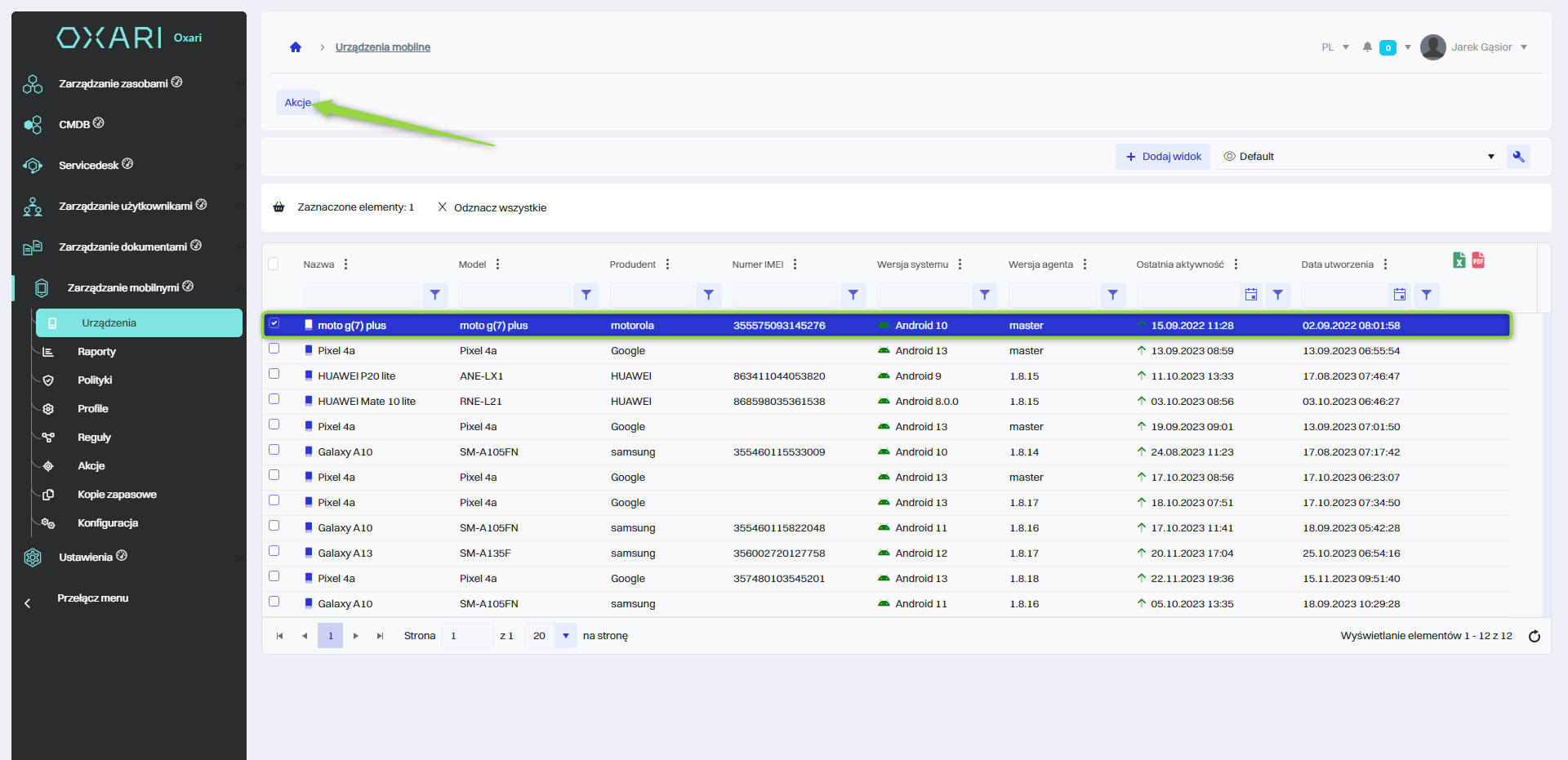
To perform a backup, go to Mobile Management > Devices, then select the desired device from the table and click the “Actions” button.
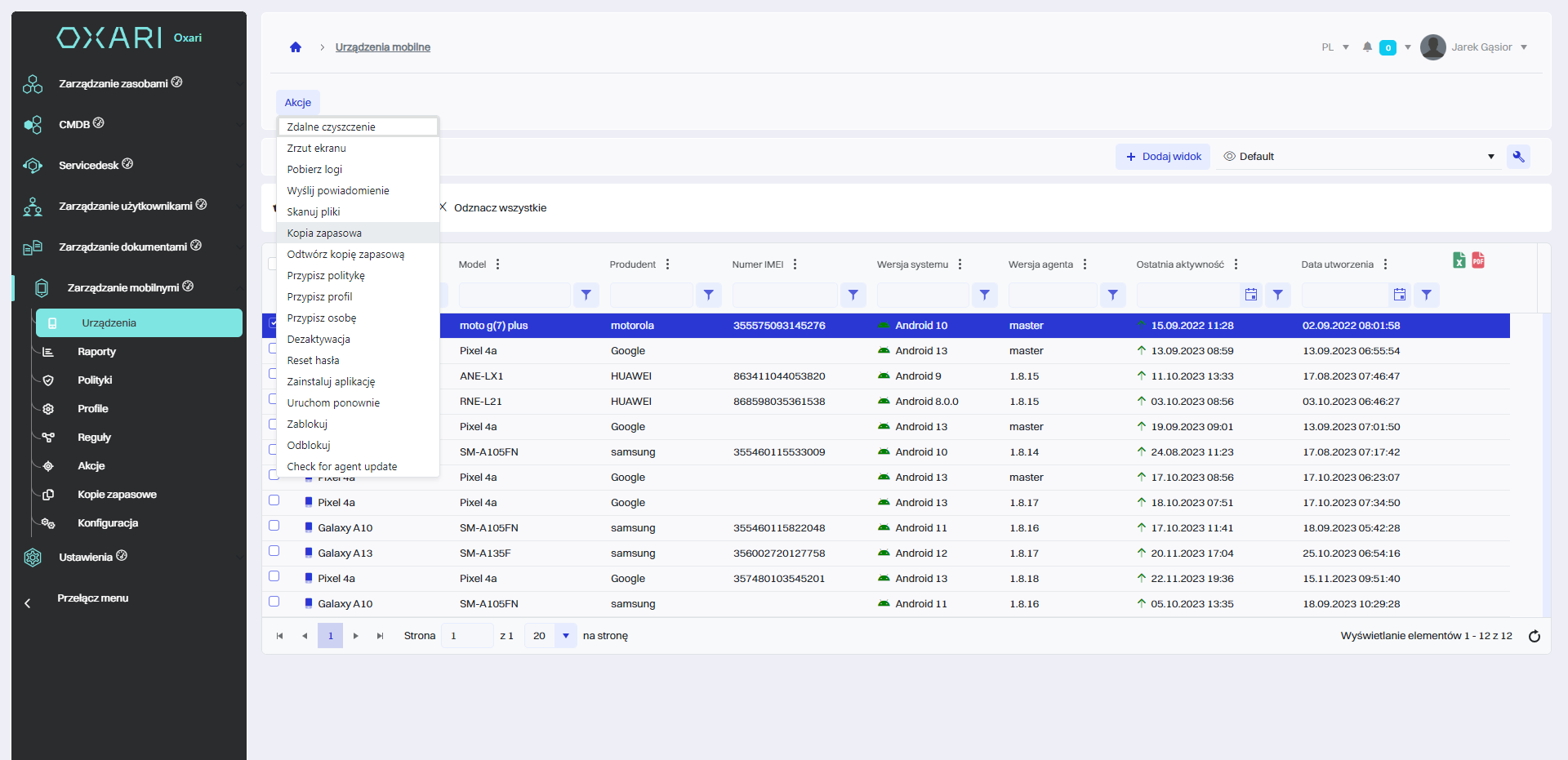
Then, choose from the list of “Kopia zapasowa”.
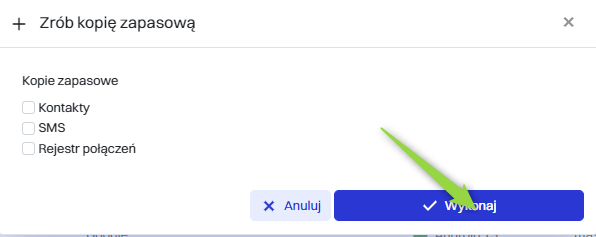
In the “Backup” window, the user has the option to create backups for selected types of data from the mobile device. You can select which items are to be backed up by choosing options such as: “Contacts”, “SMS” and “Call log”. Once you have selected the desired data to be backed up and clicked the “Execute” button, the backup process will begin, and when it is complete, the newly created backup will appear under Mobile Management > Backups.
The second way to make a backup
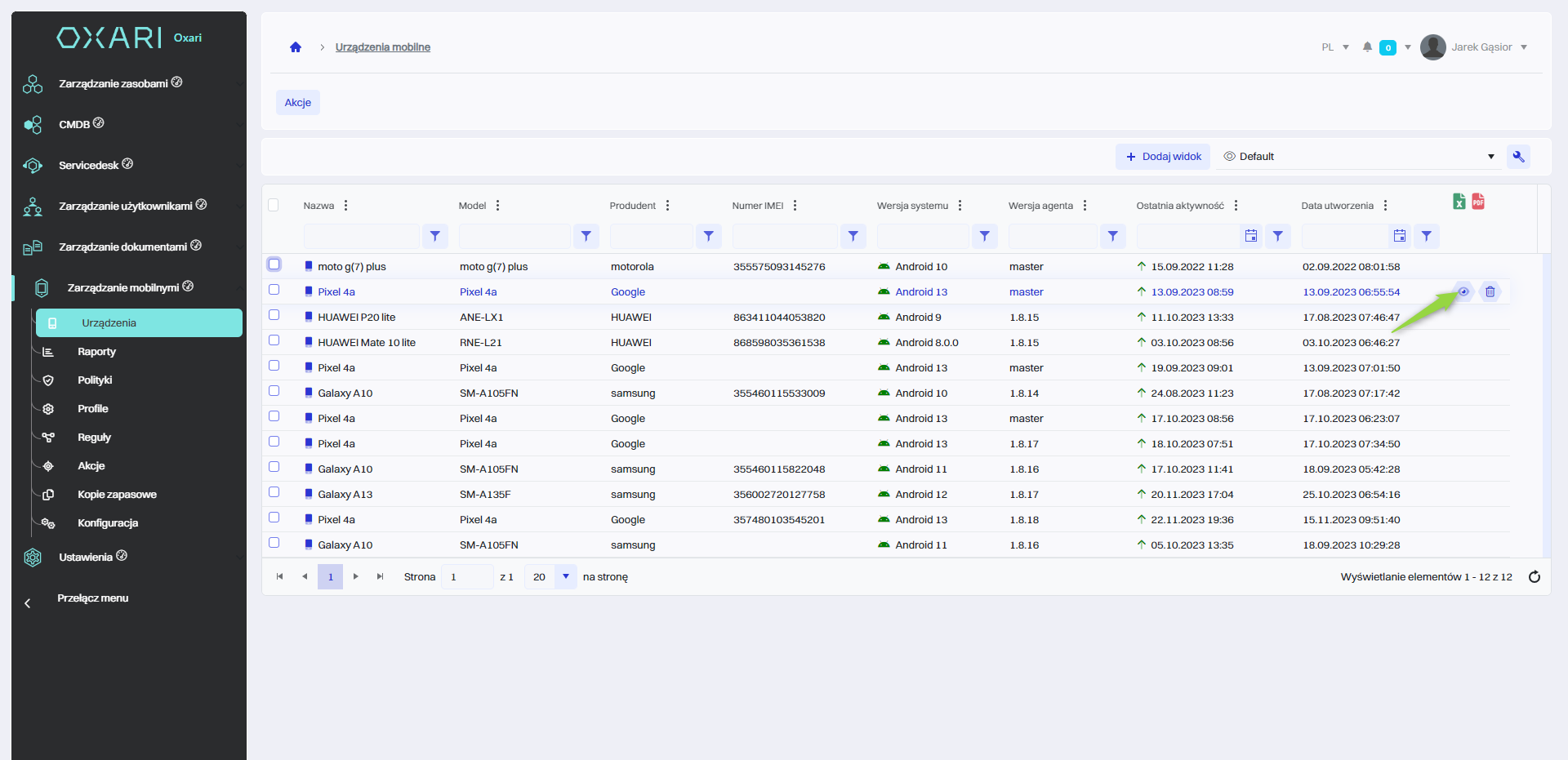
To make a backup, go to Mobile Management > Devices, then click the “Details” button next to the desired device.
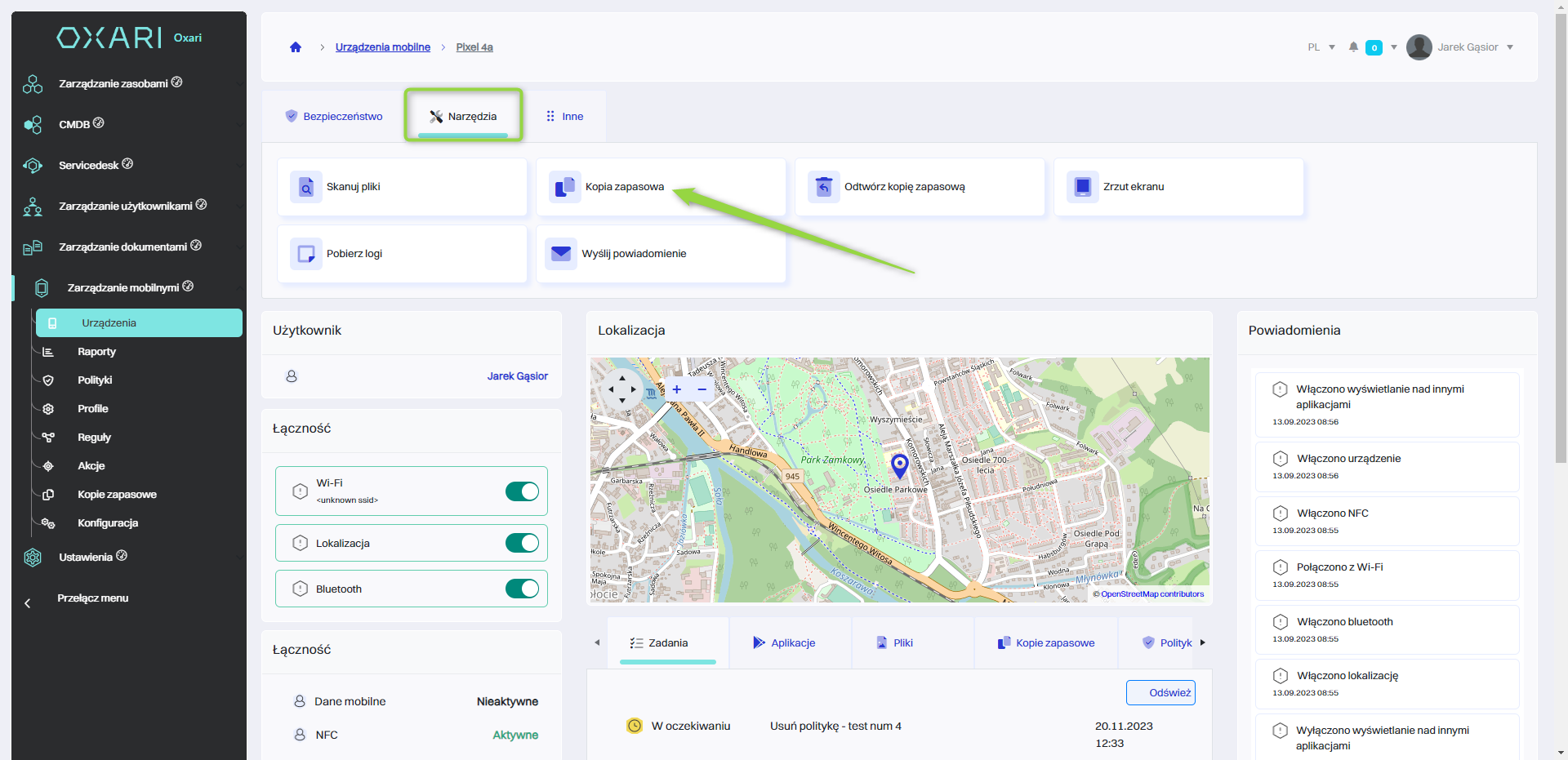
Then, in the device's detail view, click on the “Tools” tab, and then select the “Backup” option.
In the “Backup” window, the user has the option to create backups for selected types of data from the mobile device. You can select which items are to be backed up by choosing options such as: “Contacts”, “SMS” and “Call log”. Once you have selected the desired data to be backed up and clicked the “Execute” button, the backup process will begin, and when it is complete, the newly created backup will appear under Mobile Management > Backups.